

User Manual
Aviella Mobile POS
Android • Windows • Offline-First • v1.0

8th Floor, Electra House
Samora Machel Ave, Harare
www.aviella.co.zw • +263 78 216 8407
Samora Machel Ave, Harare
www.aviella.co.zw • +263 78 216 8407
Offline-Only Mode
No internet. No monthly fees. Buy once, own it forever on your device. All features work 100% locally.
View BYO Pricing
View BYO Pricing
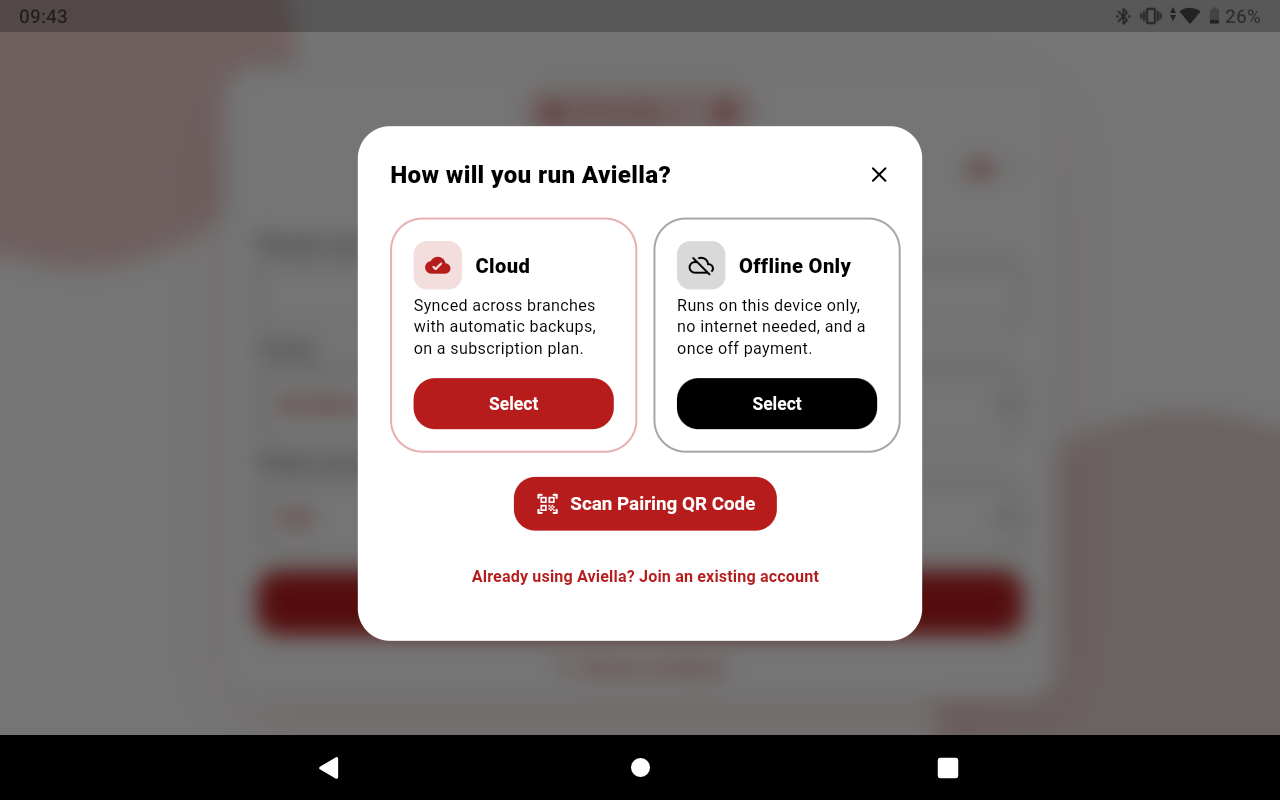
Step 1 — Activate Your License
Buy your license automatically from the Aviella website. Once purchased, you receive a License Key. Activate once — the POS is yours permanently on that device. No internet needed after activation.
- 1Open the app. On the setup screen tap Activate Offline License.
- 2Copy your Device ID shown on screen. Enter this ID on the Aviella website during your purchase to automatically generate your key.
- 3Paste the License Key and tap Activate. The app unlocks fully.
- 4Not ready to buy? Tap Start Free Trial for a full 1-Month Free Trial without needing a key.
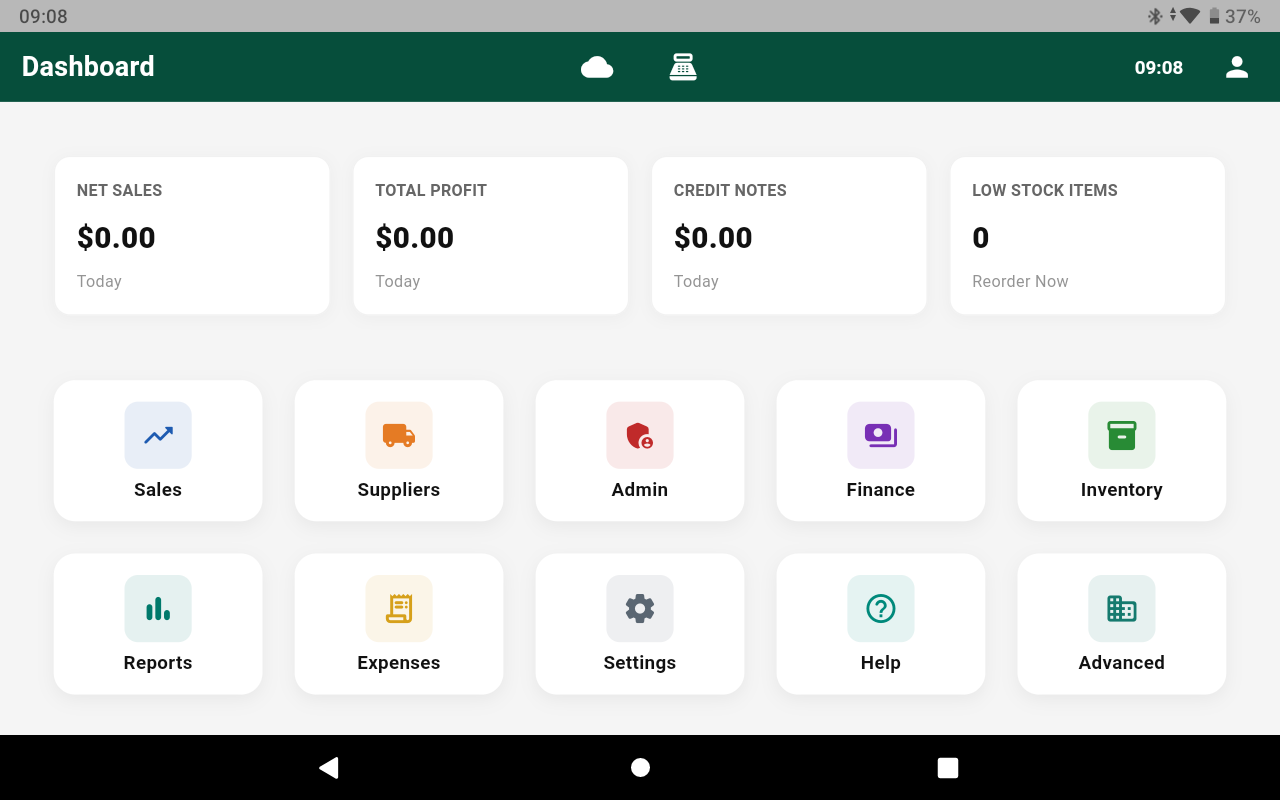
Offline License Key Activation & Device Setup (Click to enlarge)
Step 2 — Setup & First Login
- 1The Setup Wizard runs on first launch. Enter your store name, currency, and create the first admin account.
- 2Log in with Username + Password, or your 4-digit PIN for fast access.
- 3Open your shift — enter your starting float. You are ready to sell.
Adding a New Device
Since offline mode does not use the cloud, a new device requires its own separate License Key. Devices in offline mode operate independently and do not sync with each other.
No cloud, no sync. All data lives on your device. The app automatically creates backups when you close your shift, ensuring your data is always safe without any manual effort.
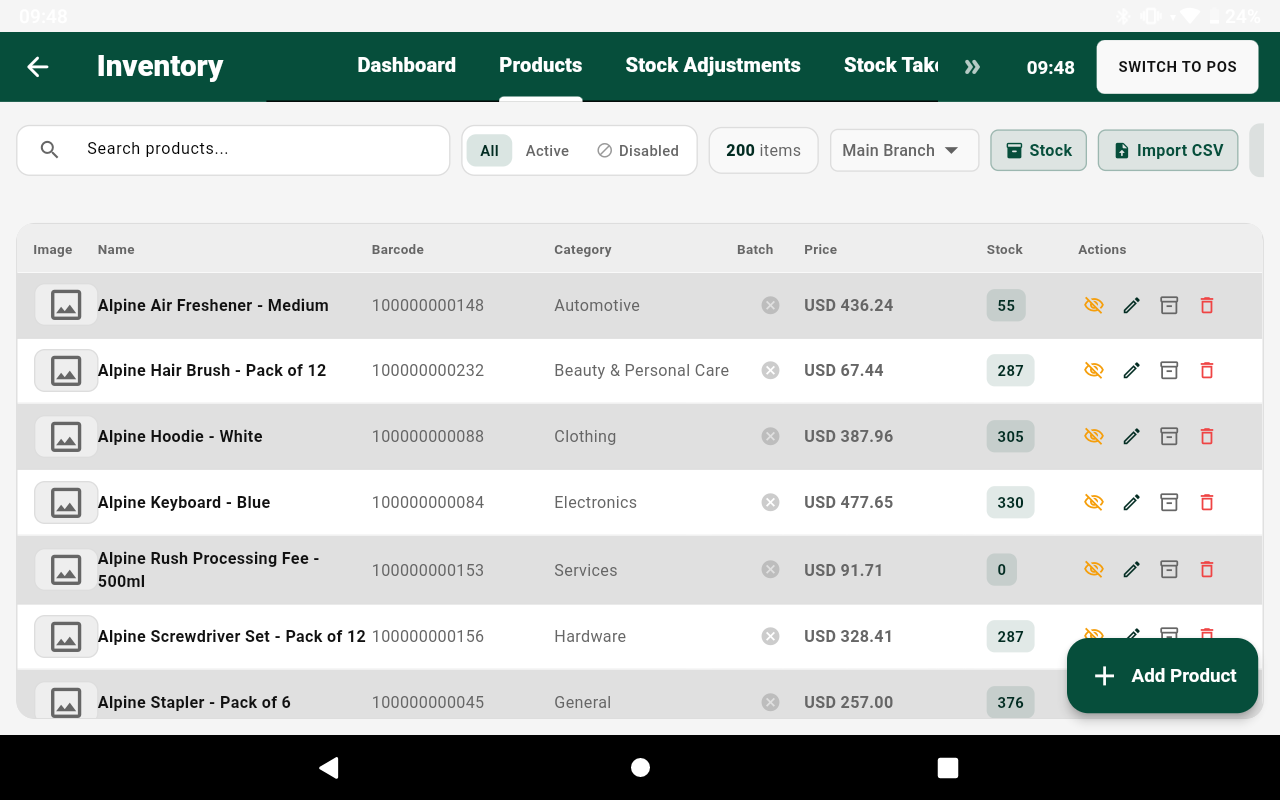
Products — Adding & Importing
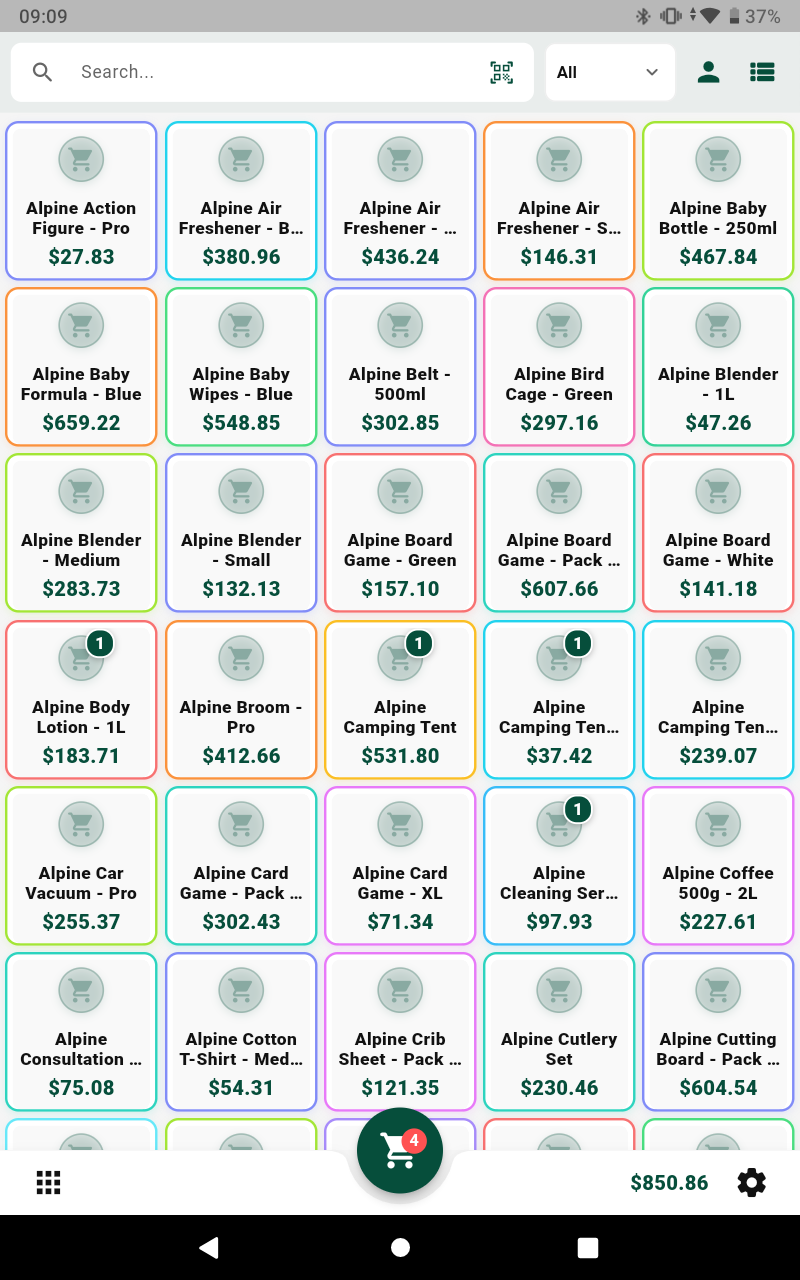
Two ways: Add manually one by one, or bulk import hundreds via CSV/Excel in seconds.
Manual — Fields Reference
| Field | Notes | Required |
|---|---|---|
| Product Name | Displayed on the POS grid. | Yes |
| Barcode | Scan or type. Auto-increments from last if blank. | Optional |
| Category / Group | Organises products on grid and in reports. | Optional |
| Selling Price | Price charged to customer. | Yes |
| Cost Price | Used in Profit & Loss. Recommended. | Recommended |
| Tax Rate | Select a rule (e.g. VAT 15%). Auto-calculated on receipts. | Optional |
| Track Stock | ON = track inventory. OFF = unlimited / service item. | — |
| Opening Stock Qty | Units on hand right now. | If tracking |
| Reorder Level | Quantity that triggers Low Stock Report alert. | Optional |
| Unit of Measure | e.g. Pieces, Kg. Multi-UOM: add secondary UOMs with own price. | Optional |
| Price Lists | Retail / Wholesale prices per list if enabled. | Optional |
| Batch / Expiry | Batch number & expiry date if Batches enabled. | Optional |
| Product Image | Photo from camera or gallery. Shown on POS grid. | Optional |
CSV / Excel Bulk Import
- 1Products → Import icon (top right). Tap Download Template to get a ready-made CSV saved to your Downloads folder.
- 2Open the downloaded template and fill in your product details (like Name, Price, Cost, and Stock Quantity). The spreadsheet is already pre-formatted to make this easy.
- 3Tap Import CSV / Excel, pick your file. Result shows X Imported / X Updated / X Skipped. Existing products matched by barcode are updated, not duplicated.
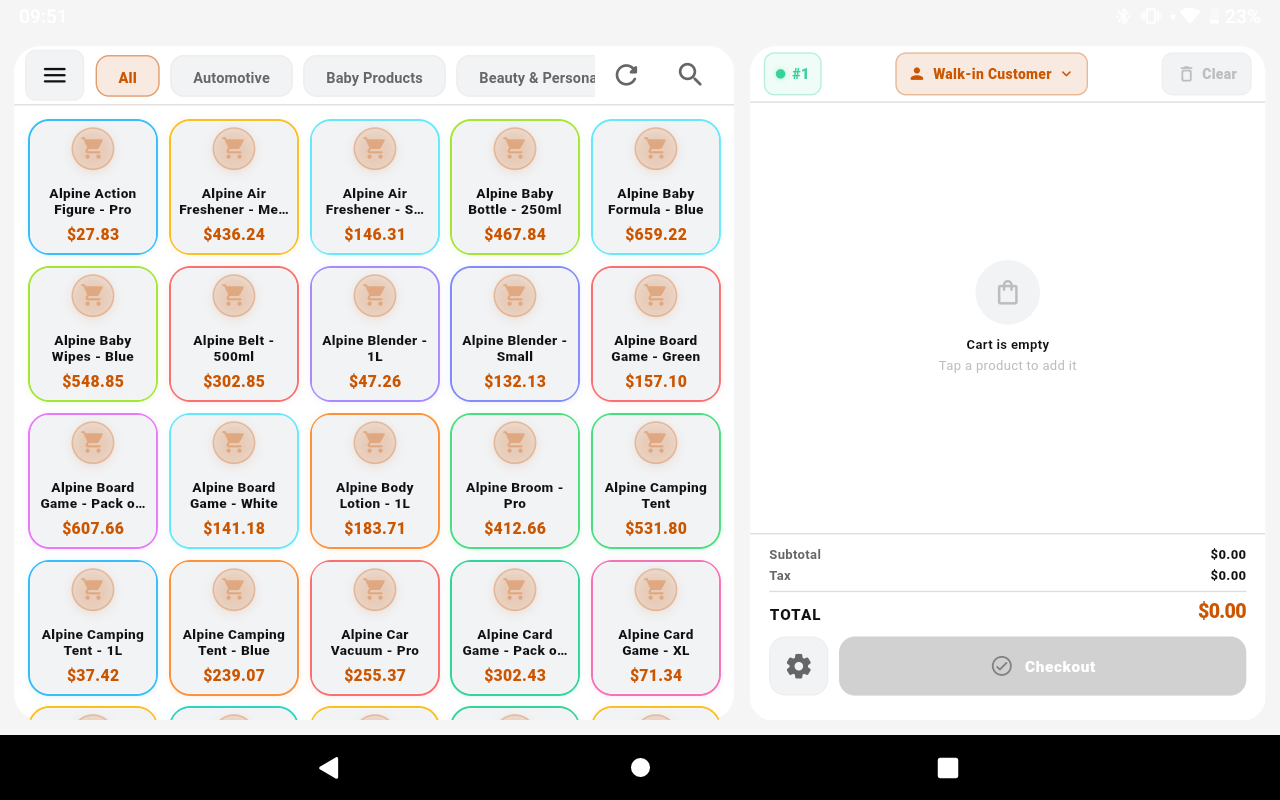
Making a SaleBoth Modes
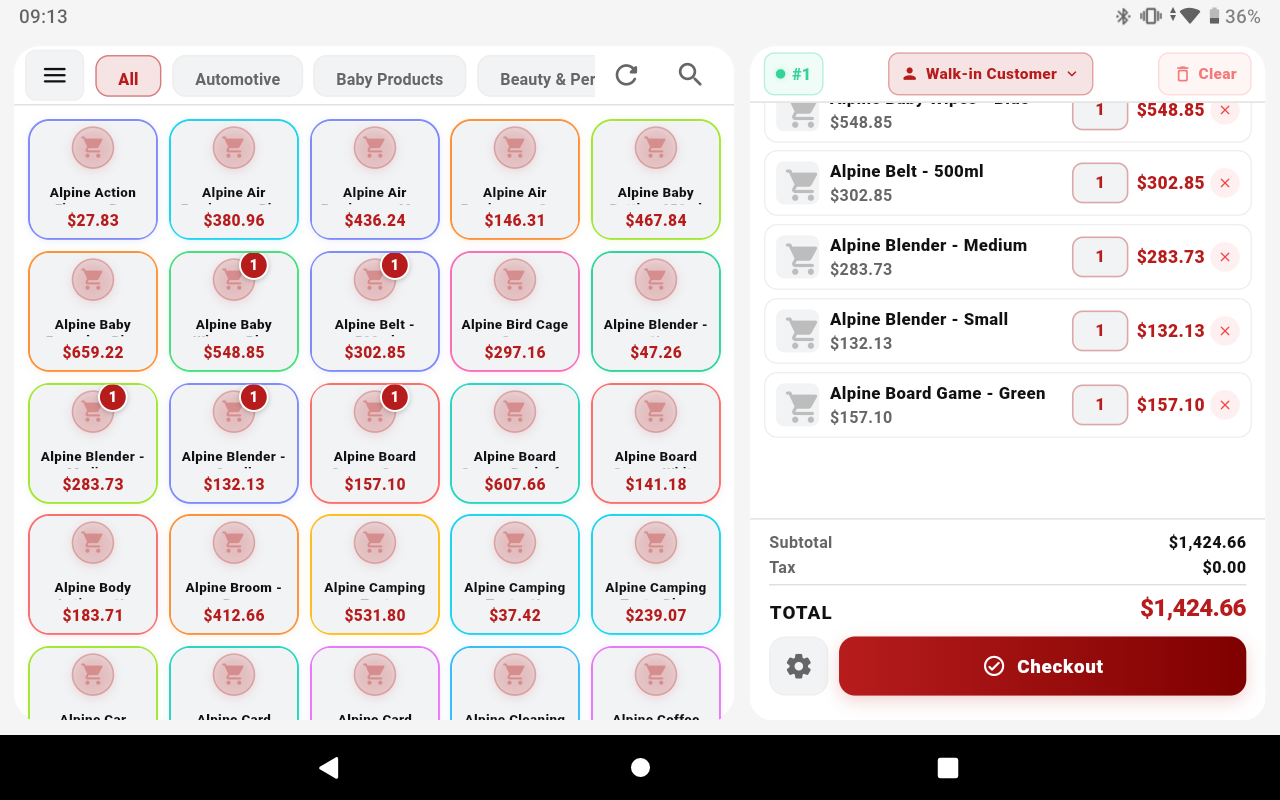
- 1Tap a product from the grid or search by name / barcode.
- 2Tap a cart item to adjust quantity or apply a line discount.
- 3Tap Charge. Select payment: Cash, Card, Mobile Money or split across currencies.
- 4Enter amount tendered — change calculated instantly. Tap Complete Sale.
- 5Print receipt via Bluetooth printer, or share as PDF via WhatsApp / Email.
POS Grid & Active Cart (Tablet)
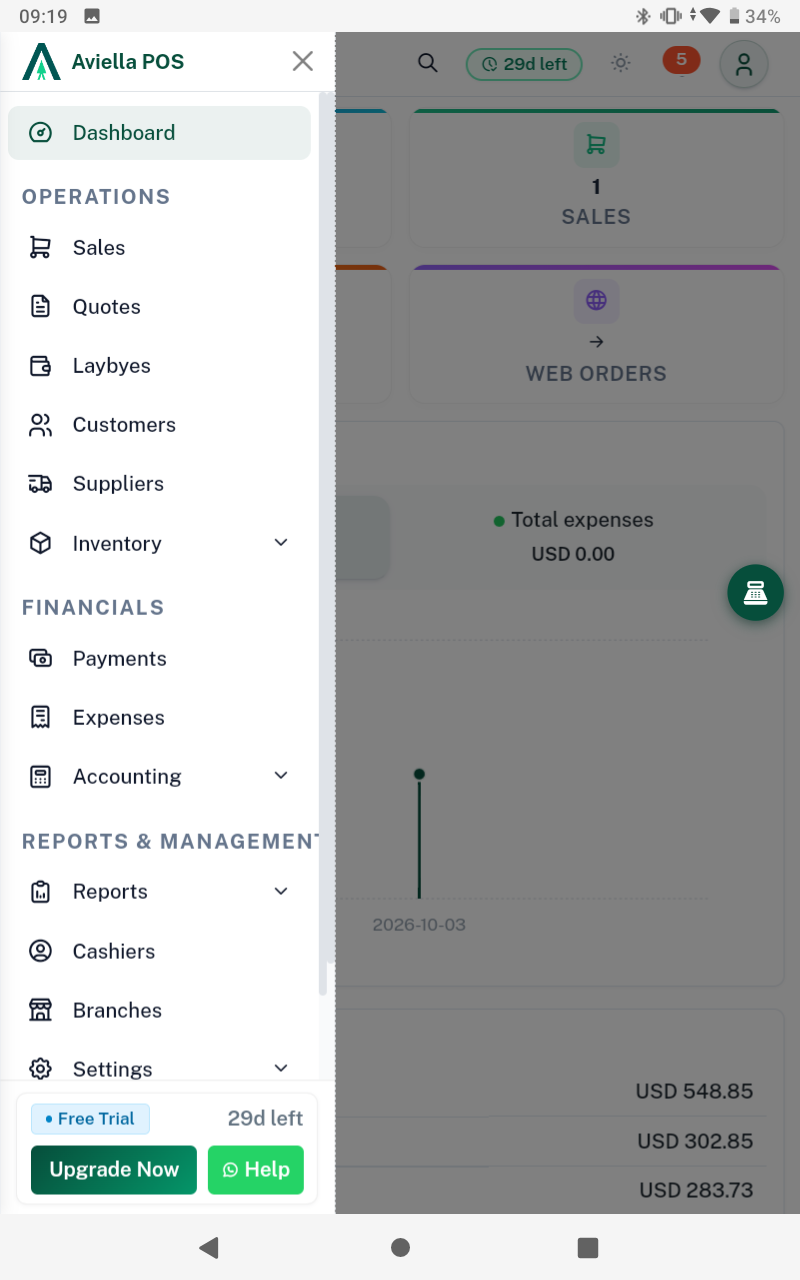
Checkout & Multi-Payment (Mobile)
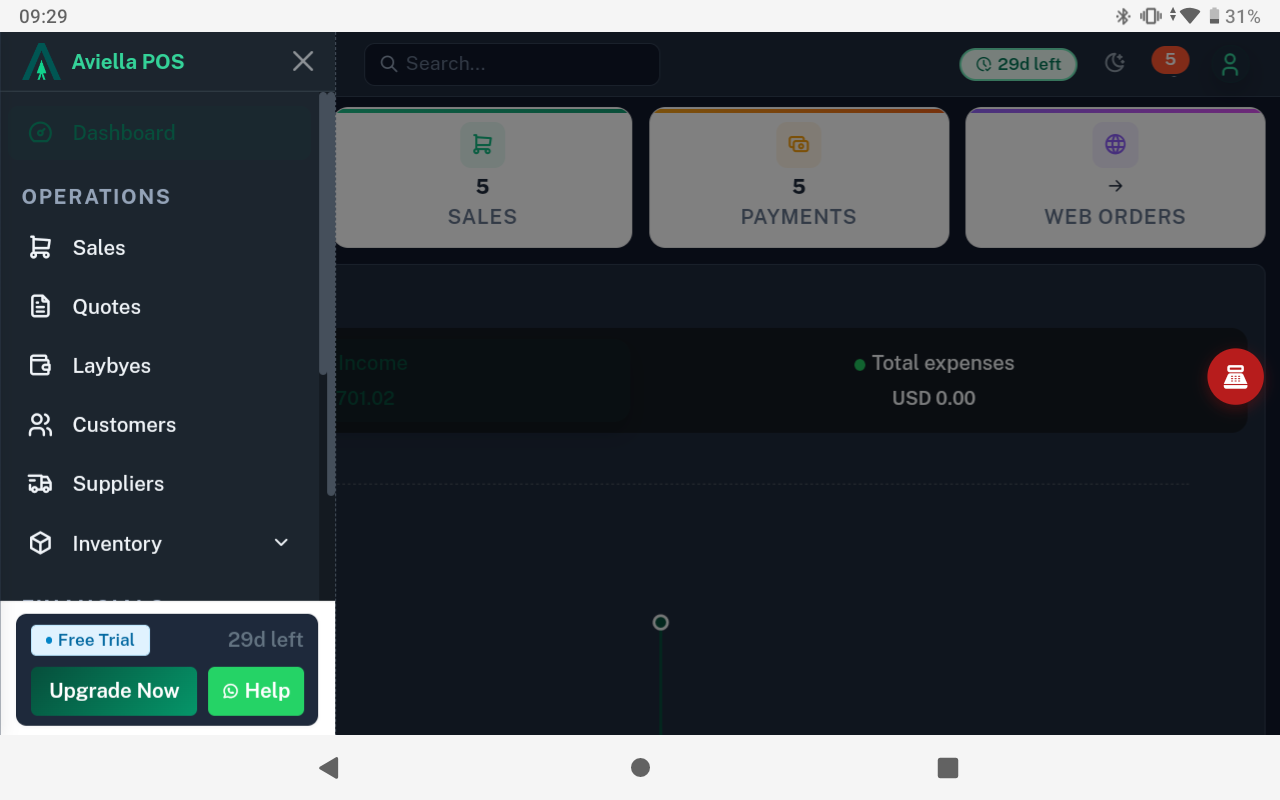
All Features Available
SalesFull POS with split payments & change.
QuotesCreate & share quotes as PDF instantly.
LaybyeDeposits, balance tracking & payments.
PurchasesRecord supplier stock, update inventory.
ReturnsProcess returns & issue credit notes.
CustomersAccounts with full purchase history.
InventoryLive stock, low-stock alerts & adjustments.
ExpensesLog petty cash & expenses per shift.
Bluetooth PrintBluetooth receipts, slips & kitchen orders.
Stock Take (Audit & Reconciliation)
Count physical stock, compare to system quantities. Variances are recorded with cashier name, date, branch, and notes. Audit ID assigned automatically (e.g. AUD-3F2A1B).
- 1Menu → Stock → Stock Take. Tap the green Stock Take button.
- 2For each product, type the Physical Qty you counted. Variance calculated in real time.
- 3Add optional notes. Tap Save Audit. Stock levels adjust automatically.
- 4Tap any past audit to see the full item-by-item breakdown. Export as PDF or Excel.
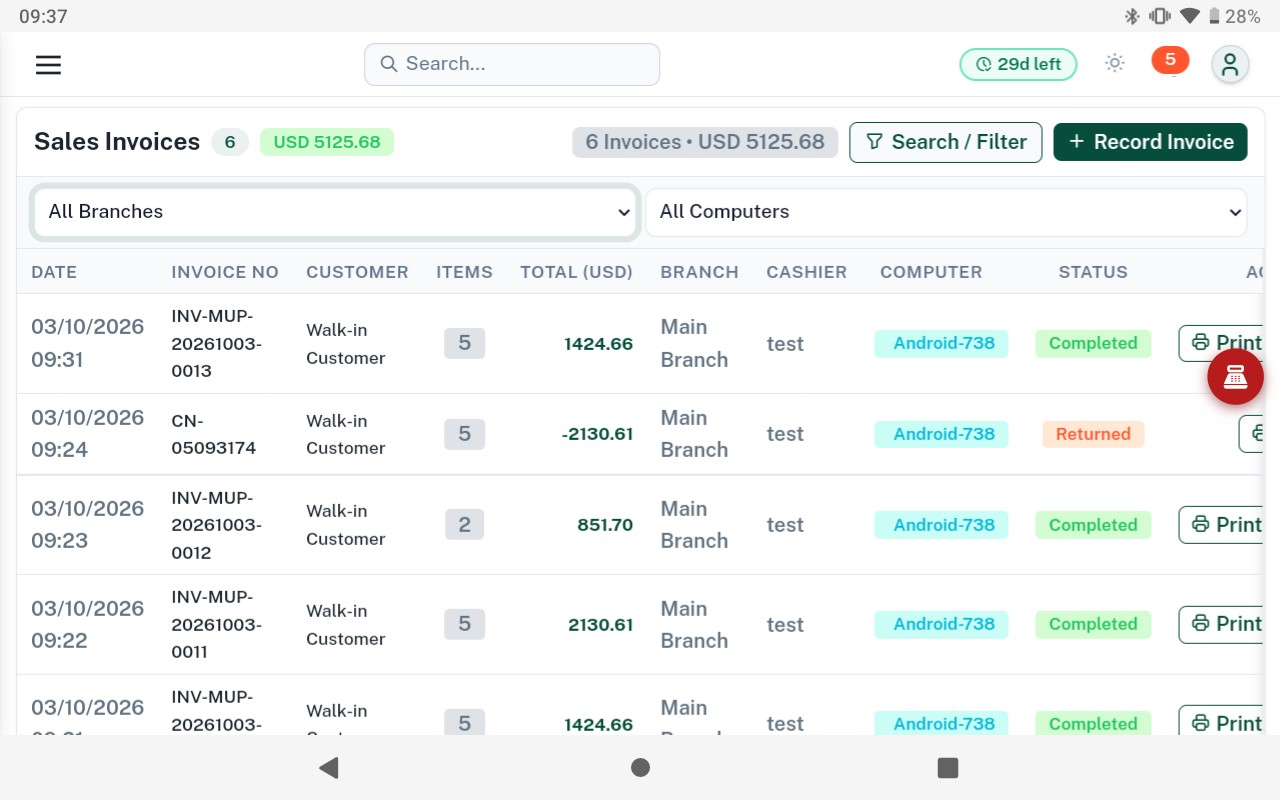
Stock Take & Physical Counting
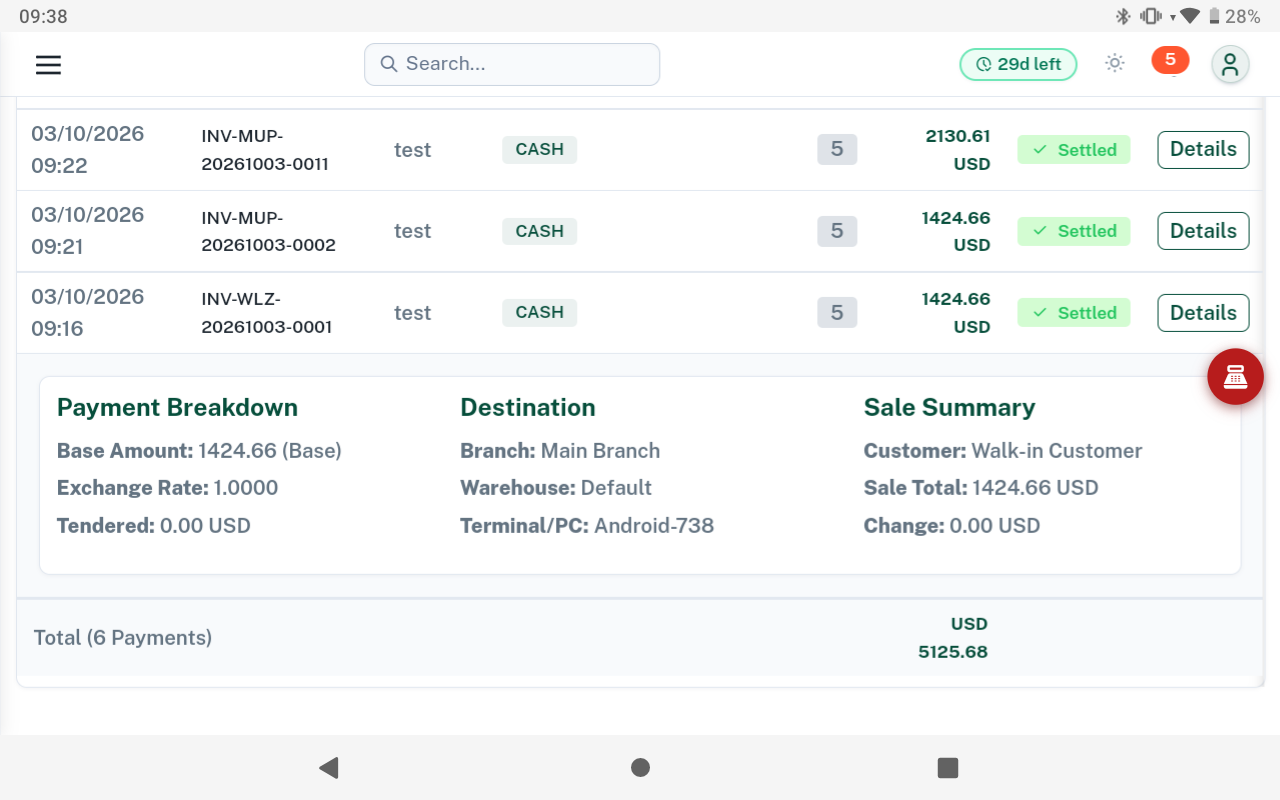
Stock Variance & Audit Logs
Multi-Currency
Pre-loaded: USD, ZWG (ZiG), ZAR, EUR, GBP, BWP. Add any custom currency. Exchange rate applied at checkout per sale. Split payments across currencies supported.
| Step | Where | What to Do |
|---|---|---|
| 1. Enable Currencies | Settings → Currencies | Toggle currencies ON/OFF. Add custom codes (e.g. CNY) with name and symbol. |
| 2. Set Exchange Rates | Settings → Exchange Rates | + Add Rate. Select From/To currency, enter rate. E.g. USD → ZWG = 37. |
| 3. Use at Checkout | Charge screen | Select customer's currency. Total converts instantly. Receipt shows both currencies. |
Price Lists (Retail / Wholesale)
Assign different prices to the same product per customer type. Enable in Settings → Price Lists. Add a Wholesale Price column to your CSV import and it maps automatically.
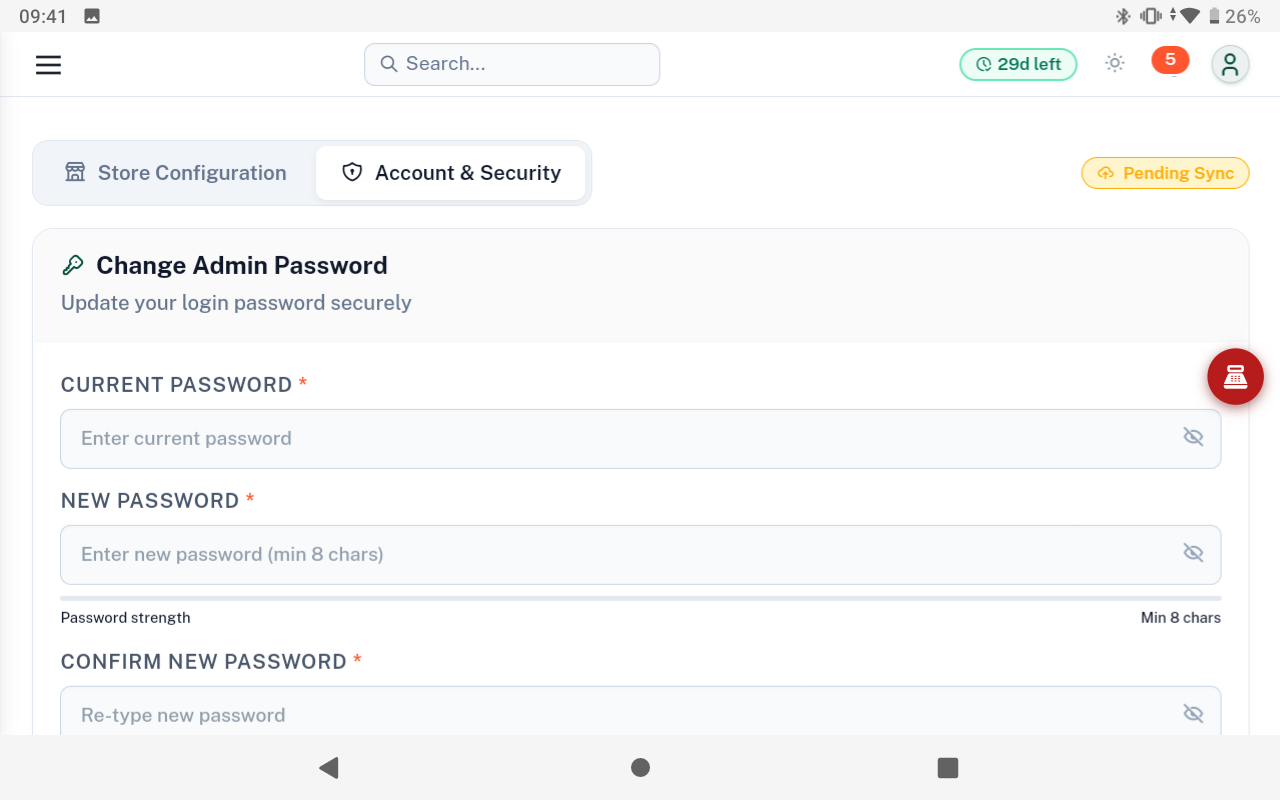
Daily Sales & Financial Summary
Sales Insights & Product Analytics
| Report | What It Shows | Export |
|---|---|---|
| Daily Report (Z-Report) | All sales, payments & totals by payment type for the day. | PDF • Excel |
| Shift Report | Per-cashier sales, cash in/out, float & variance. | PDF • Excel |
| Shift Variance | Expected vs actual cash — highlights discrepancies. | PDF • Excel |
| Sales Insights | Top products, hourly trends, category performance. | PDF • Excel |
| Cash Day Book | Full cash movement: sales, refunds, expenses, payouts. | PDF • Excel |
| Payments Report | Breakdown by Cash, Card, Mobile Money. | PDF • Excel |
| Discount Summary | All discounts by product, cashier & date range. | PDF • Excel |
| Tax Summary | Tax collected per rate — ready for VAT filing. | PDF • Excel |
| Credit Notes | All returns & credit notes issued. | PDF • Excel |
| Stock Valuation | Current stock value at cost & retail per product. | PDF • Excel |
| Stock Ledger | Full movement history: sales, purchases, adjustments. | PDF • Excel |
| Low Stock Report | Products below your reorder level. | PDF • Excel |
| Profit & Loss | Revenue vs cost of goods — gross & net profit. | PDF • Excel |
| Balance Sheet | Assets, liabilities & equity snapshot. | PDF • Excel |
| Expenses Report | All logged expenses by category & date range. | PDF • Excel |
User Accounts & Access Rights
Go to Settings → User Accounts. Every staff member gets their own login. You control exactly what each person can do.
The Three Roles
| Role | Access Level | Typical Use |
|---|---|---|
| Admin | Full access — products, settings, reports, users, sync. | Owner / IT Manager |
| Manager | All reports. Can override cashier restrictions with PIN. | Store Manager |
| Cashier | POS register only. Controlled by permission toggles below. | Till Operator |
User Account & Role Toggles
4-Digit Quick PIN Security
Cashier Permissions
| Permission | What It Controls |
|---|---|
| Allow Discounts + Max % | Can apply discounts up to their limit. Set an expiry date for temporary discount access. |
| Process Payments | Can complete and tender sales. |
| Issue Credit Notes | Can process returns and issue refunds. |
| Reprint Receipts | Can reprint past sale receipts. |
| Allow Laybye | Can create laybyes, take deposits, and process balance payments. |
Supervisor Override: If a cashier exceeds their permissions, the app prompts for a Manager/Admin PIN before proceeding.
Key Settings to Configure
- Bluetooth Printer: Settings → Printers → Scan. Select your Bluetooth printer, tap Test Print.
- Currencies & Rates: Settings → Currencies + Exchange Rates. Enable and set rates before selling.
- Tax Rules: Settings → Tax. Add VAT 15% or any rate. Assign per product or set as default.
- Store Info: Settings → Store. Name, address, logo — printed on every receipt and PDF.
- Backups: Settings → Database Management. Export your full local database regularly.