


Samora Machel Avenue
Harare, Zimbabwe
+263 71 190 0492
Cloud Admin Guide
Mastering your inventory, reports, and business management from any device.
1. Dashboard Overview & Syncing
The Aviella Cloud Dashboard gives you a bird's-eye view of your entire business. Your POS terminals act as offline-first nodes that sync to this cloud dashboard. When your devices are online, sales, payments, and stock movements are automatically pushed to the cloud.
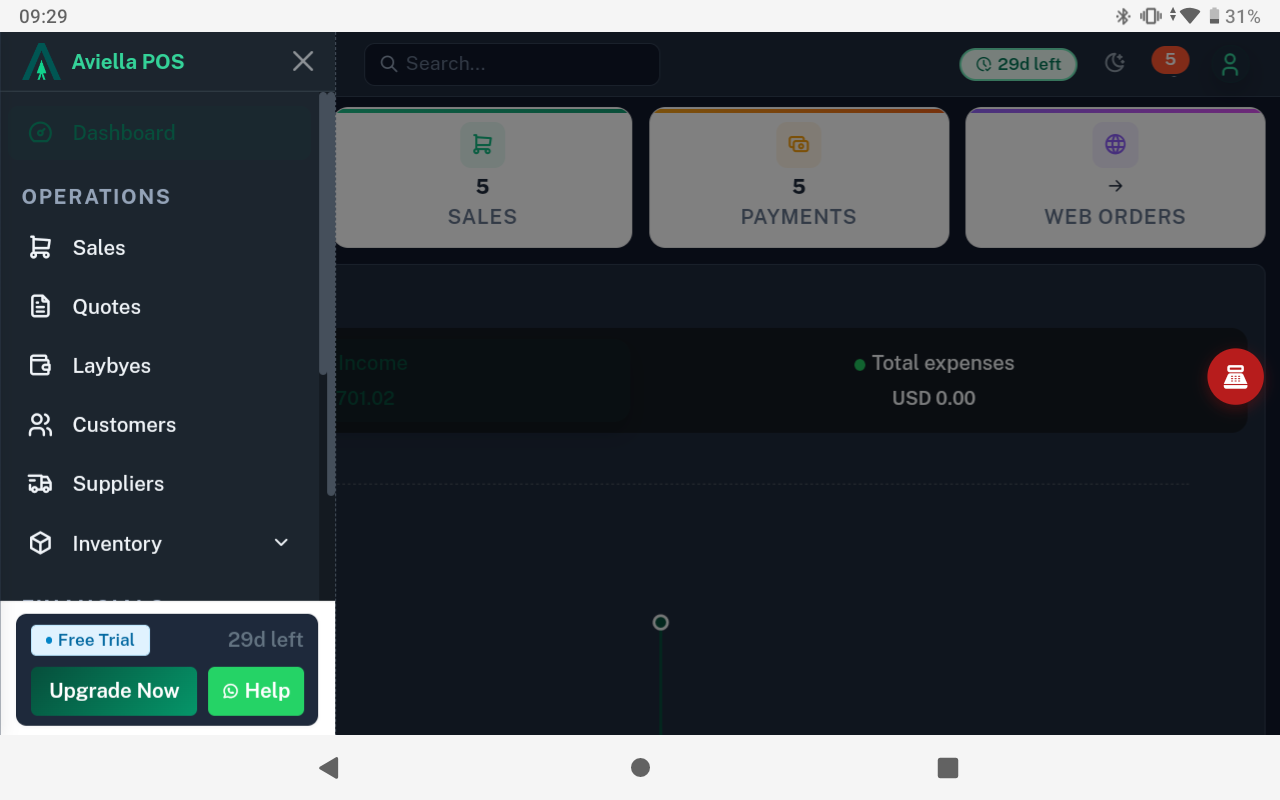
On the main screen, you will find:
- Live Revenue Tracking: Your earnings across all branches for the day, week, or month.
- Top Selling Products: Identify your fast-moving items instantly.
- Low Stock Alerts: Be notified immediately when items fall below their reorder levels.
2. Adding & Managing Inventory
Your cloud dashboard acts as the central brain for all your POS devices. Adding or updating a product here will automatically push the changes to all your shop devices on their next sync.
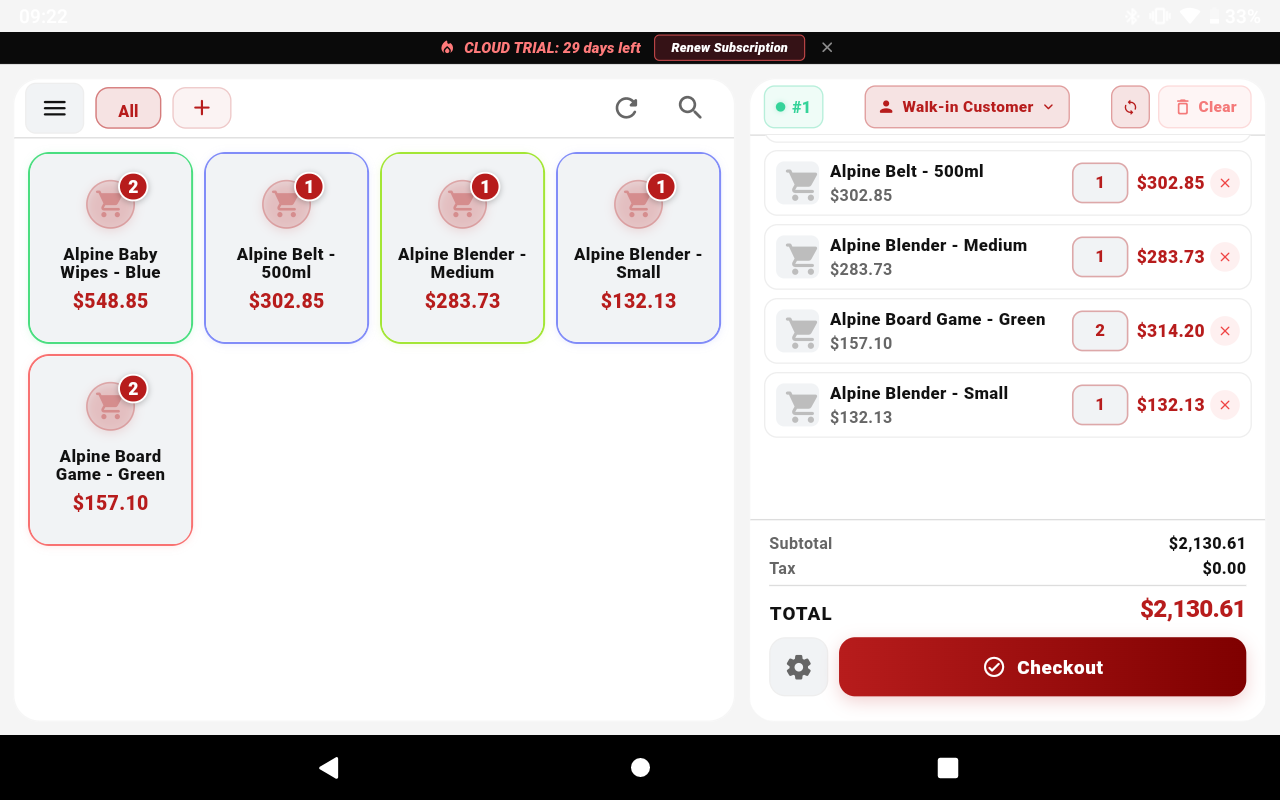
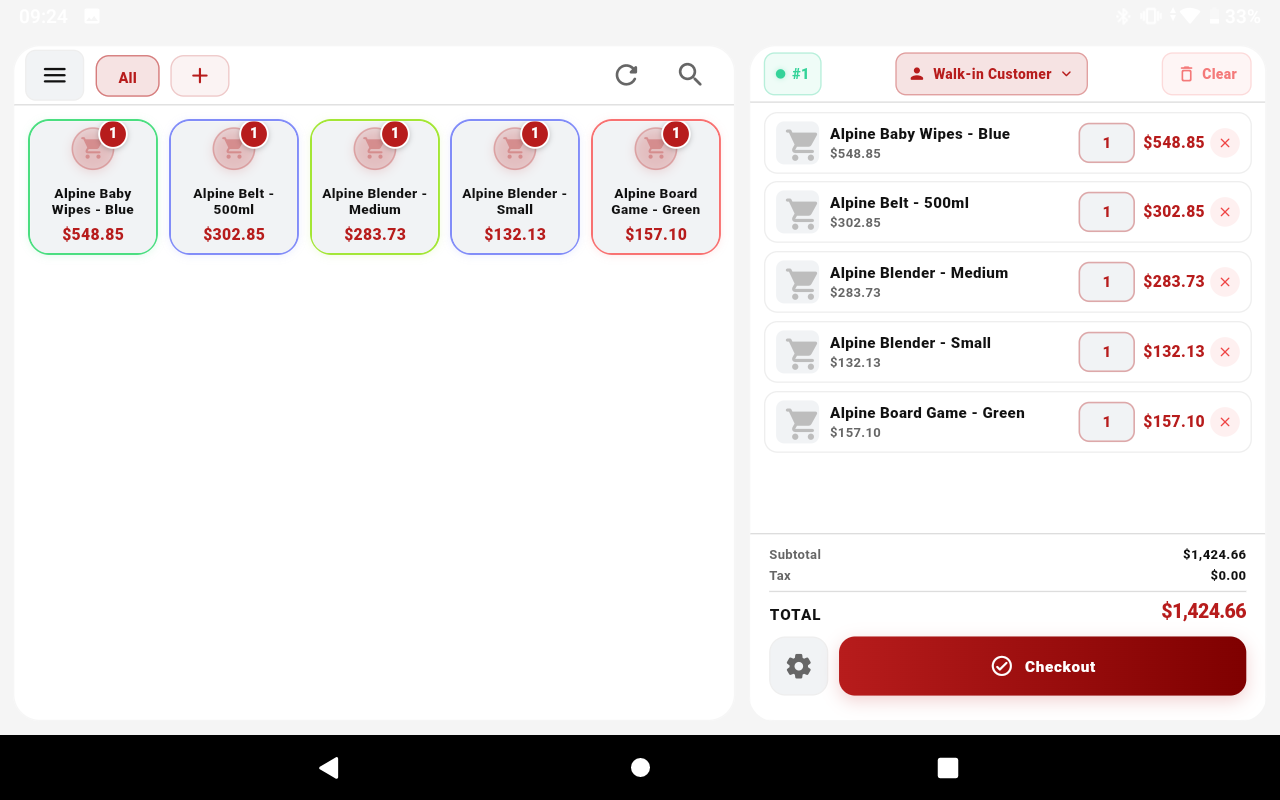
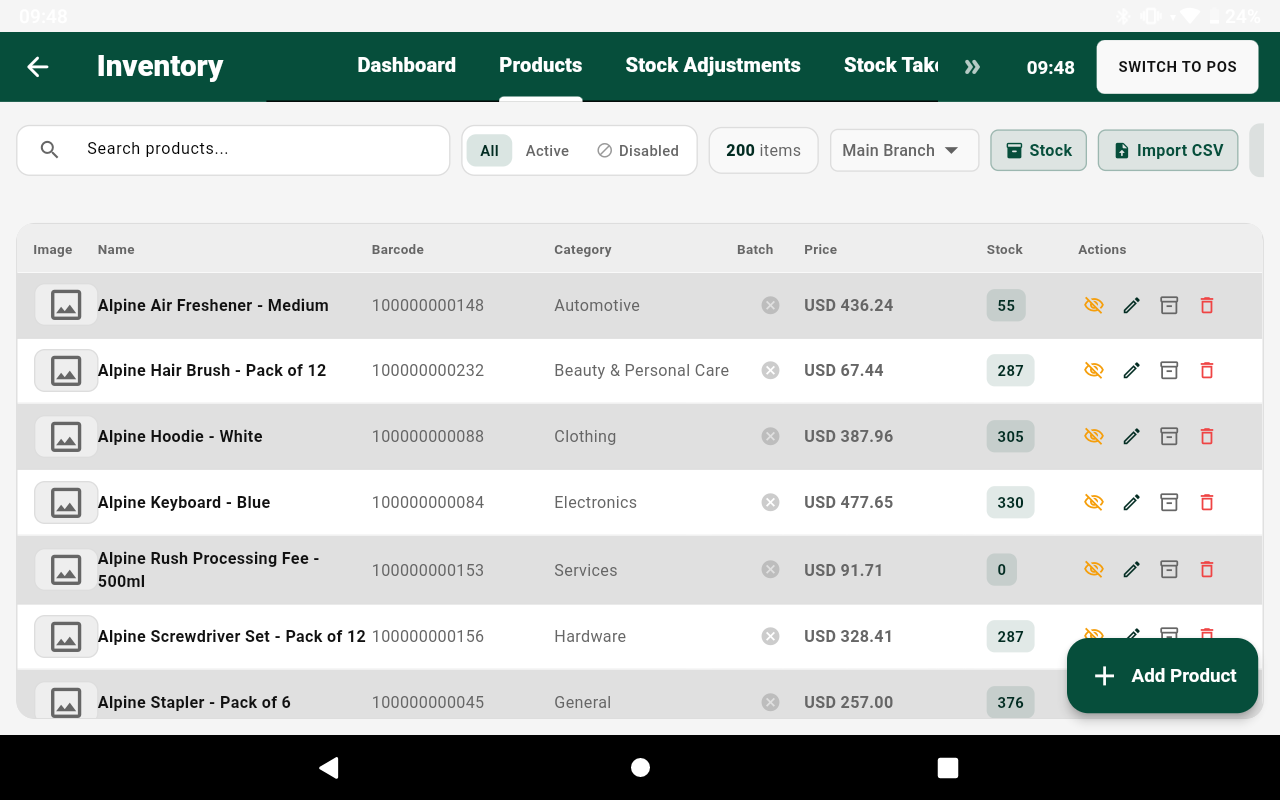
- Navigate to Inventory > Products on the left sidebar.
- Click the green + Add Product button.
- Fill in the essential details: Name, Category, and Barcode.
- Configure pricing: Set your Cost Price and Selling Price (and wholesale prices if applicable).
- Toggle Track Stock and enter your Opening Stock and Reorder Level.
- Click Save. The product is now live and will sync to your POS devices.
3. Managing Multi-Currency & Tax Rates
Aviella POS natively supports multiple currencies and dynamic tax rules, configured directly from the cloud.
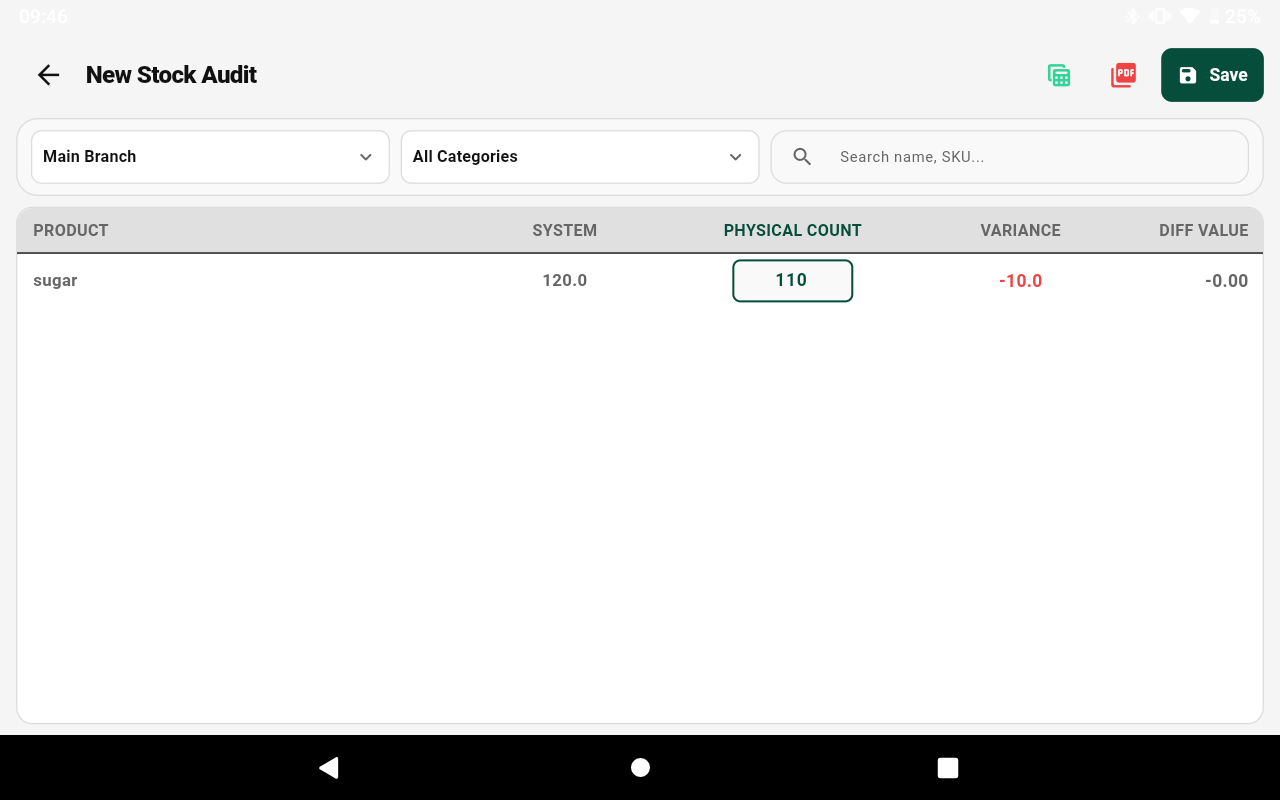
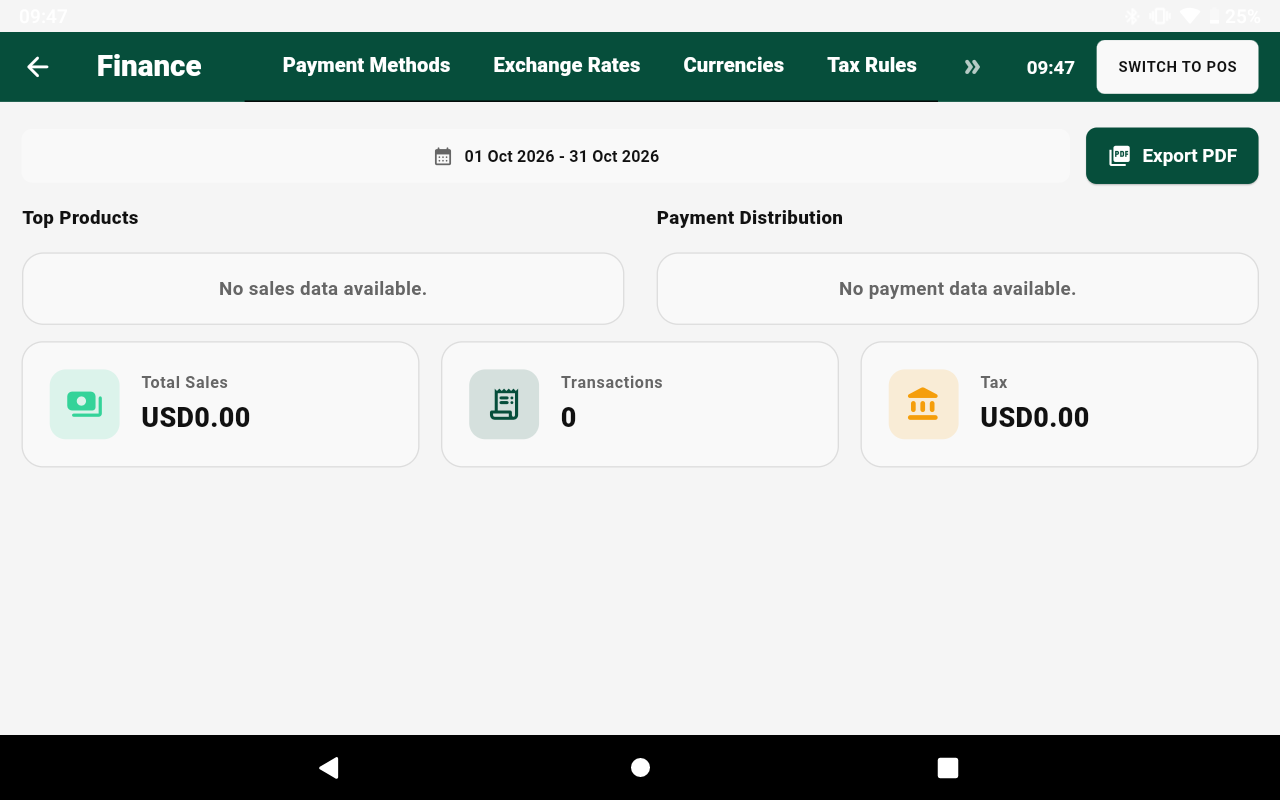
- Exchange Rates: Navigate to Settings > Currencies to manage active currencies (USD, ZWG, ZAR, etc.) and update exchange rates in real-time.
- Tax Rates: Under Settings > Tax Rules, create custom tax rates (like VAT 15%) and assign them to specific products.
4. Live Reports & Analytics
Access comprehensive, real-time reports to make data-driven decisions. All reports can be filtered by date range and branch, and exported to PDF or Excel.
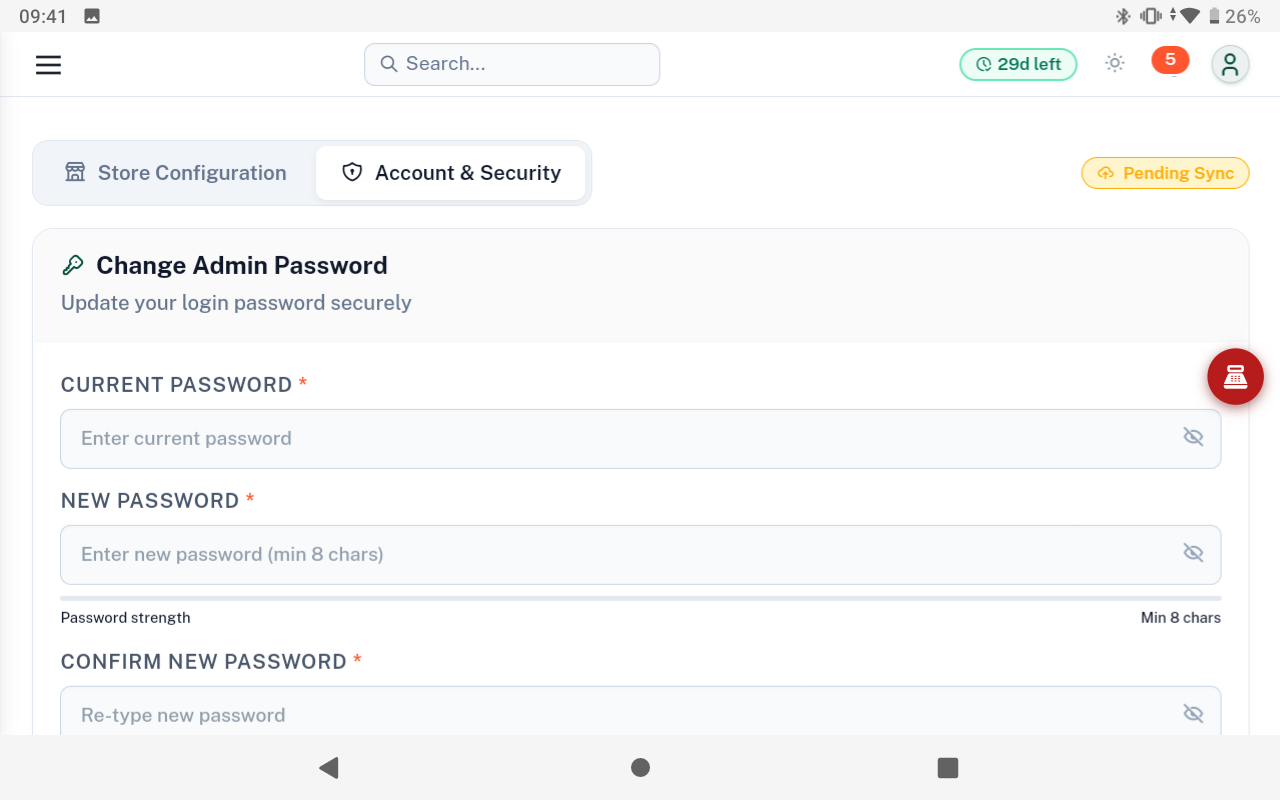
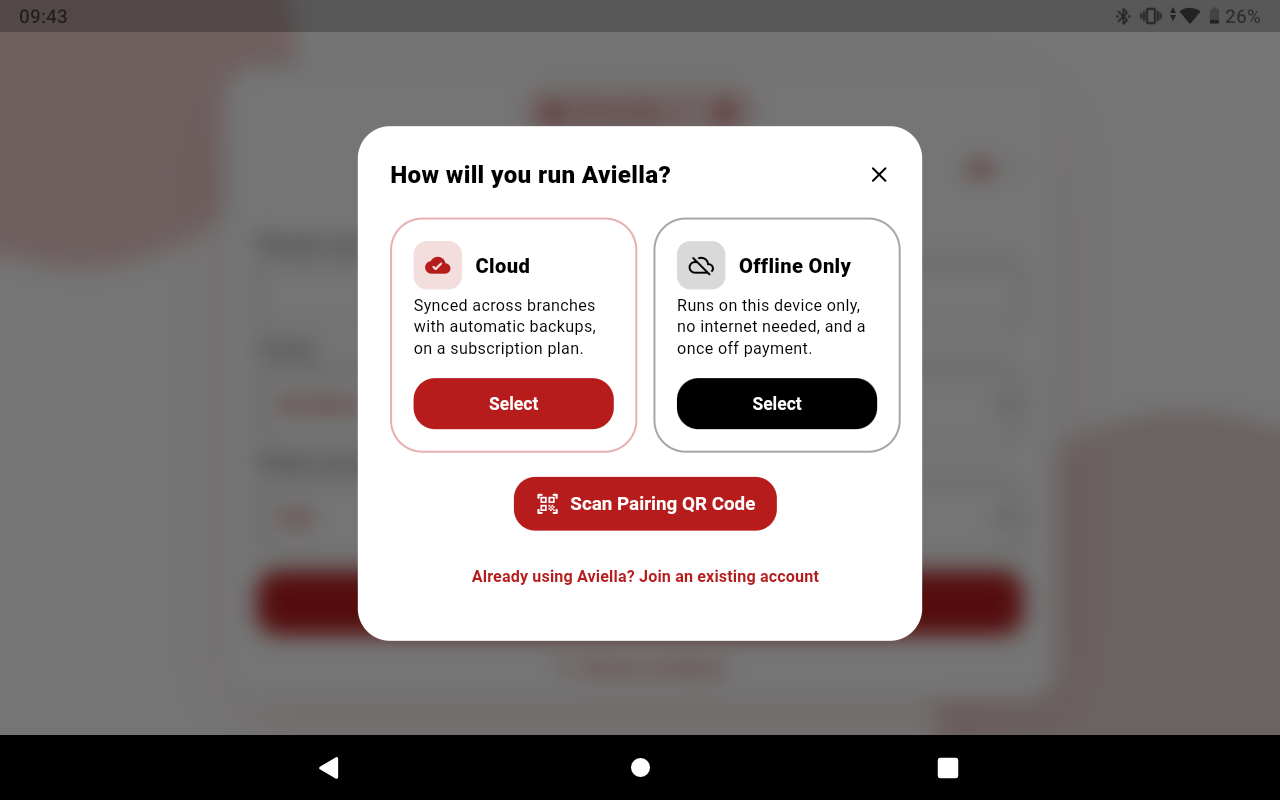
- Daily Z-Reports: View aggregated sales by payment type (Cash, Card, Mobile Money).
- Profit & Loss: Instantly calculate your margins based on cost vs. selling price.
- Shift Reports: Reconcile cashier shifts, floats, and identify any cash variances.
- Stock Ledger & Valuation: Track all inventory movements and see the total value of your stock on hand.
5. Adding Staff, Cashiers & Branches
Control exactly who has access to your system and what they can do by setting up roles and branches.
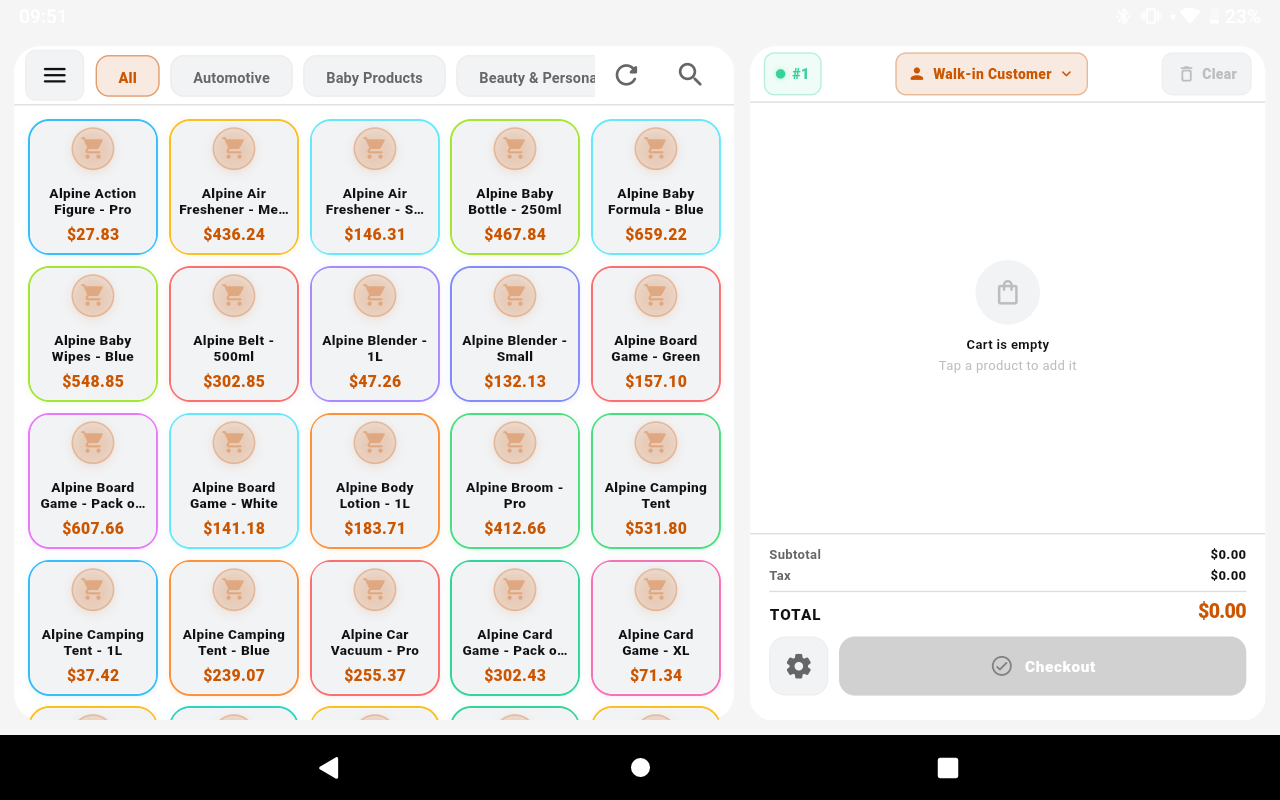
- Go to Settings > Users to manage your team.
- Click + New User.
- Assign them to a specific Branch if you operate multiple locations.
- Set their role to Cashier, Manager, or Admin.
- Assign a secure 4-digit PIN for fast login on the POS app, and configure their specific permissions (e.g., allow discounts, process returns).
6. Adding & Syncing a New POS Device
If your business is growing and you need to add another checkout terminal or open a new branch, bringing a new device online is fast and seamless.
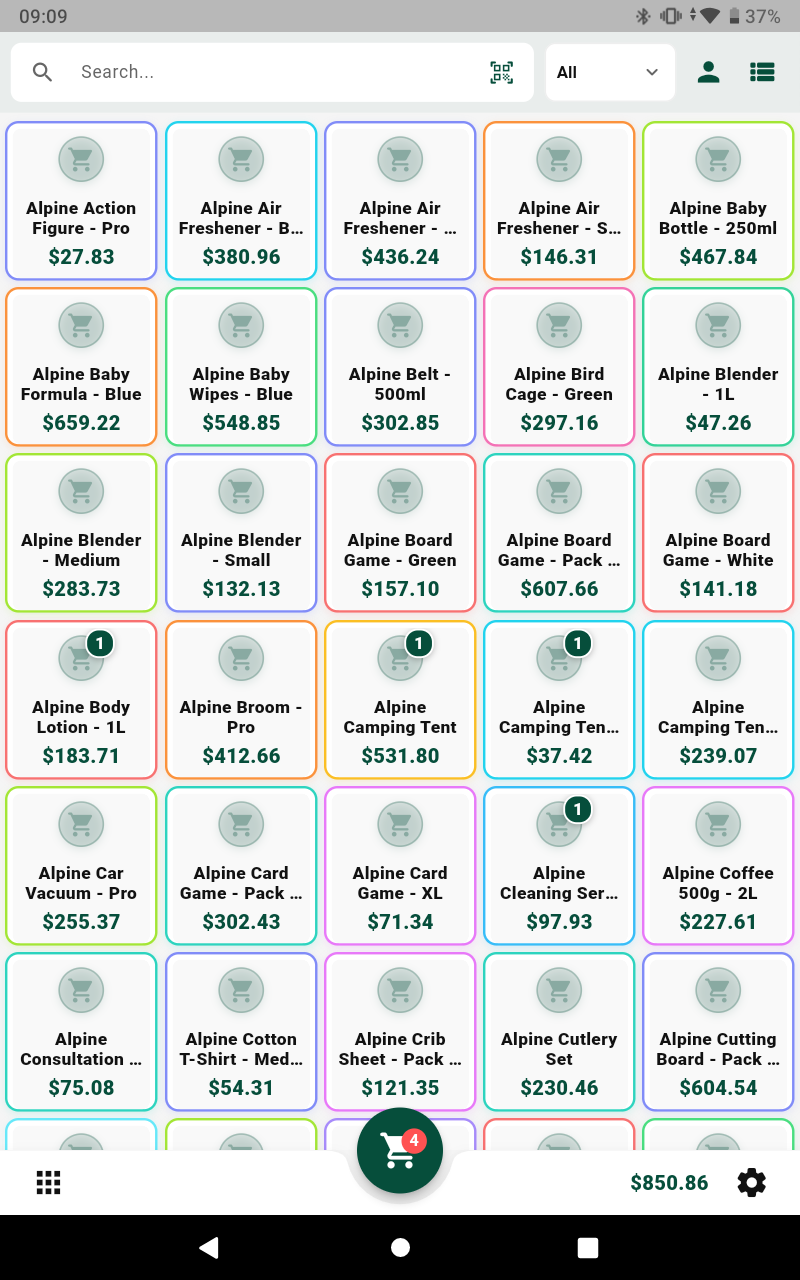
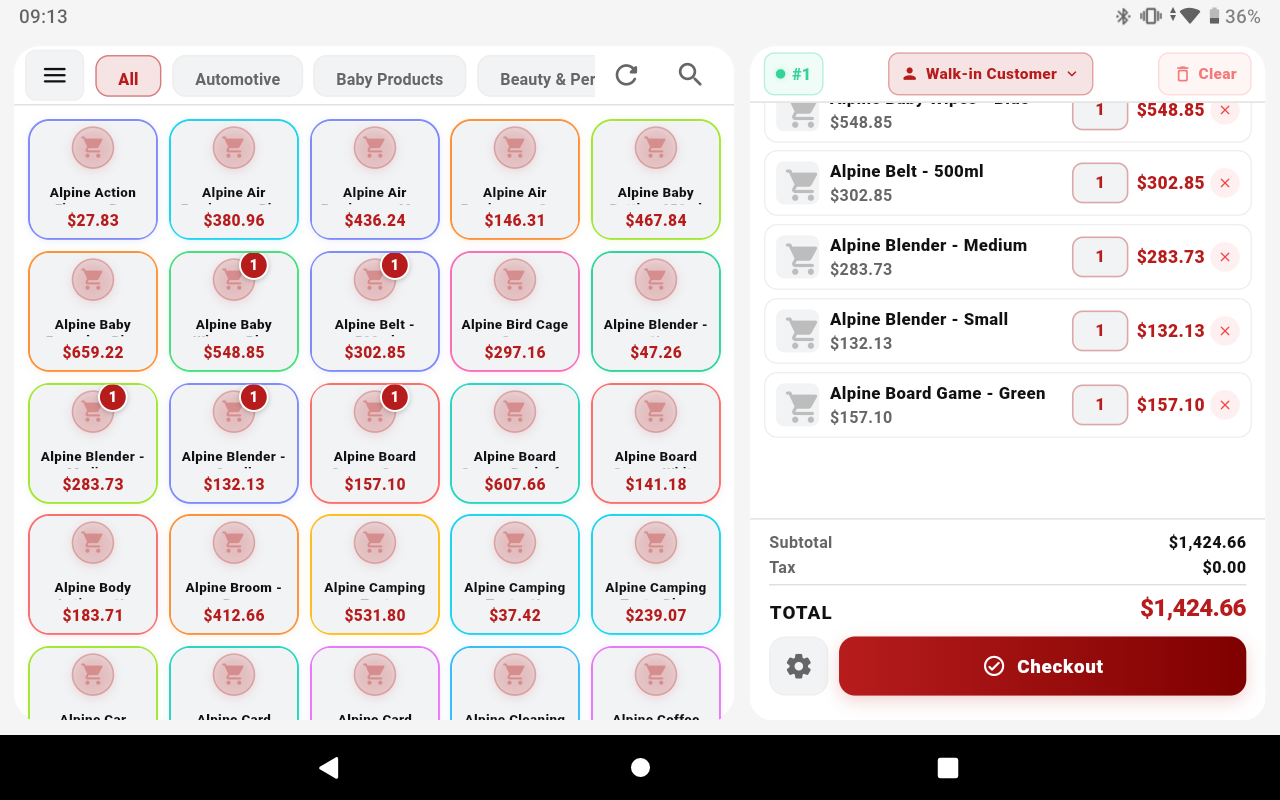
- Download & Install: Install the Aviella POS mobile app on the new Android device.
- Login to Cloud: Open the app and enter the same Email and Password you use for the Cloud Dashboard.
- Initial Sync: The device will automatically connect to your cloud account and pull down your entire product catalog, pricing, settings, and staff list.
- Select Branch (Optional): If you have multiple branches set up, the app may prompt you to select which branch this new device belongs to. This ensures sales from this device are routed to the correct location in your reports.
- Start Selling: Once the sync completes (usually within seconds), the device is ready. You can turn off the internet connection if you prefer to operate offline—it will queue all sales and push them to the cloud the next time it connects.